A live production usually means more than one camera and someone cutting between them. In Norsk Studio that “someone” can be you, driving a Smart Source Switch component from the workflow’s controls with no need for a separate vision mixer hardware in the chain.
Ingest both cameras
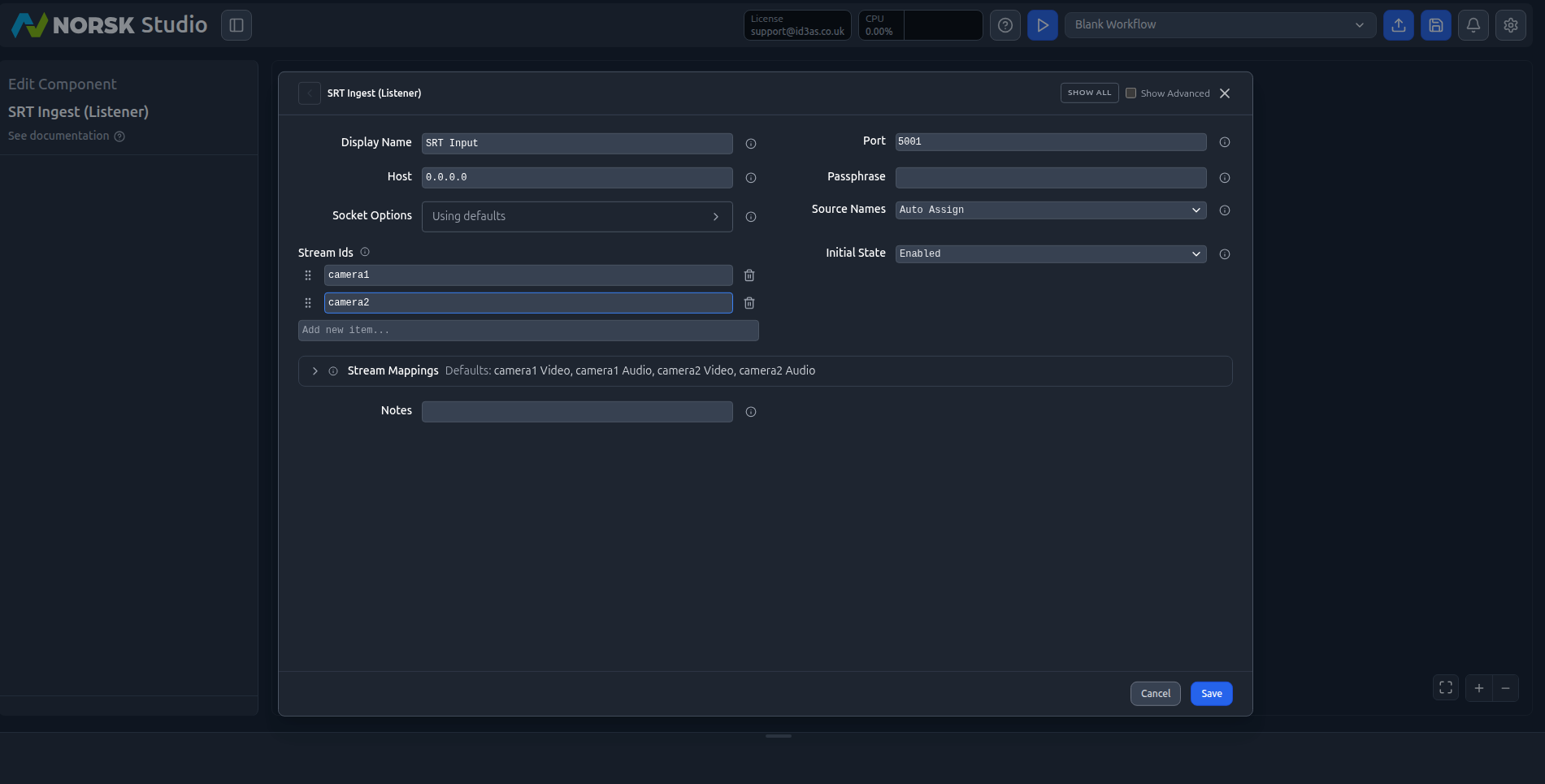
Drag an SRT Ingest (Listener) onto the canvas and open it to edit. Because we want several cameras arriving on the same input, add a Stream Id for each one — for example camera1 and camera2. Each camera pushes to the same SRT port but with its own stream ID, so Norsk can tell them apart. Leave Source Names on Auto Assign; the stream mappings then default to each camera’s video and audio:
Build the workflow
You already know the canvas from Your First Workflows, so this is quick. Drag on two more components and wire them up:
- a
Source Switcher(a Smart Source Switch) — set its sources tocamera1andcamera2. It normalises every source to one common format (1920×1080 at 25fps here) so cuts stay clean even if your cameras aren’t perfectly matched. - an
Auto CMAFoutput (shown here asLL-HLS) to package the program feed as low-latency HLS/DASH.
Connect the SRT input to the Source Switcher, and the switcher to the output:
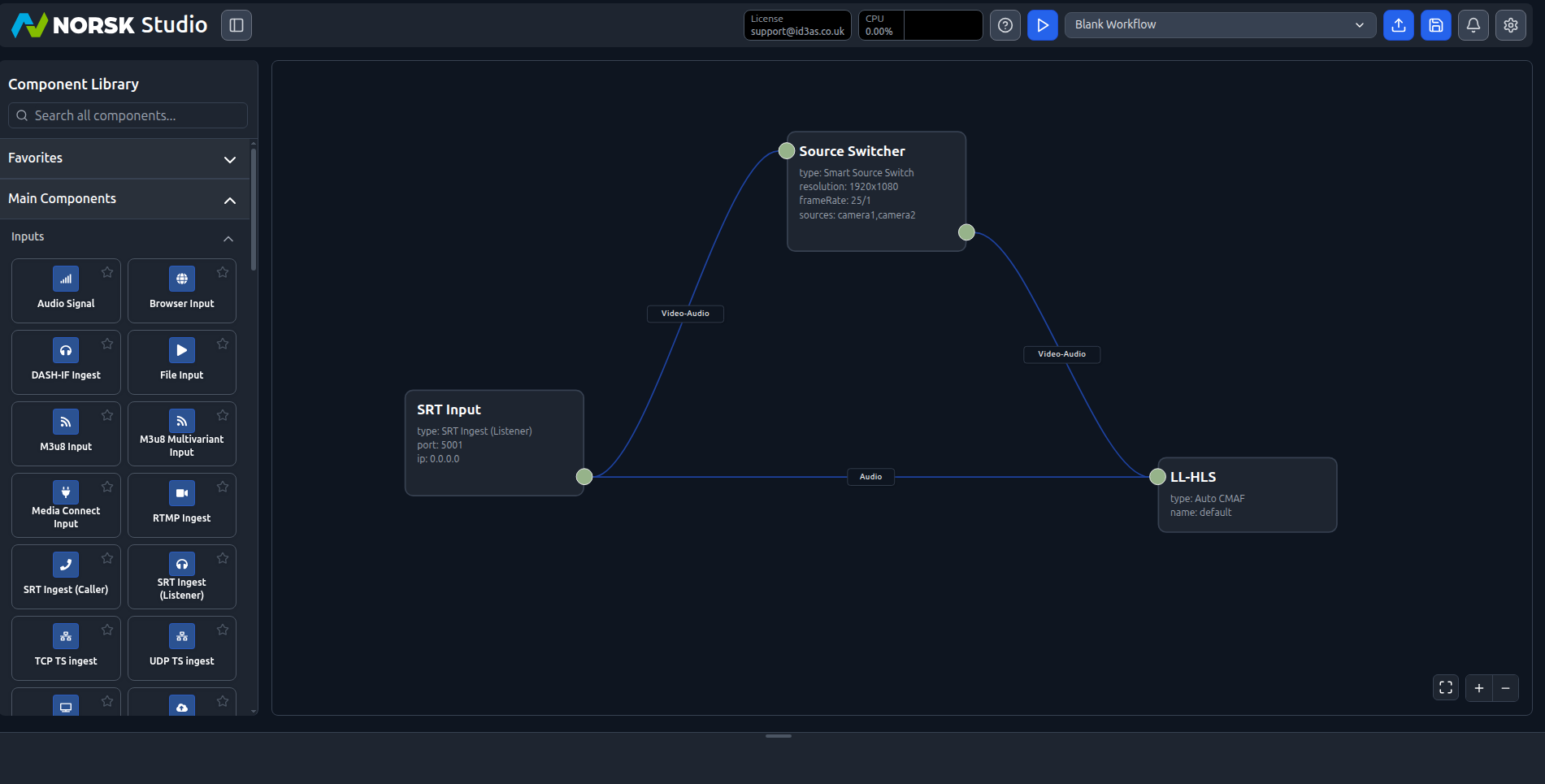
The switcher sits before the output on purpose: you cut between cameras first, then package and deliver a single program feed. However many times you cut, your viewers keep watching one continuous adaptive stream.
Cut between cameras live
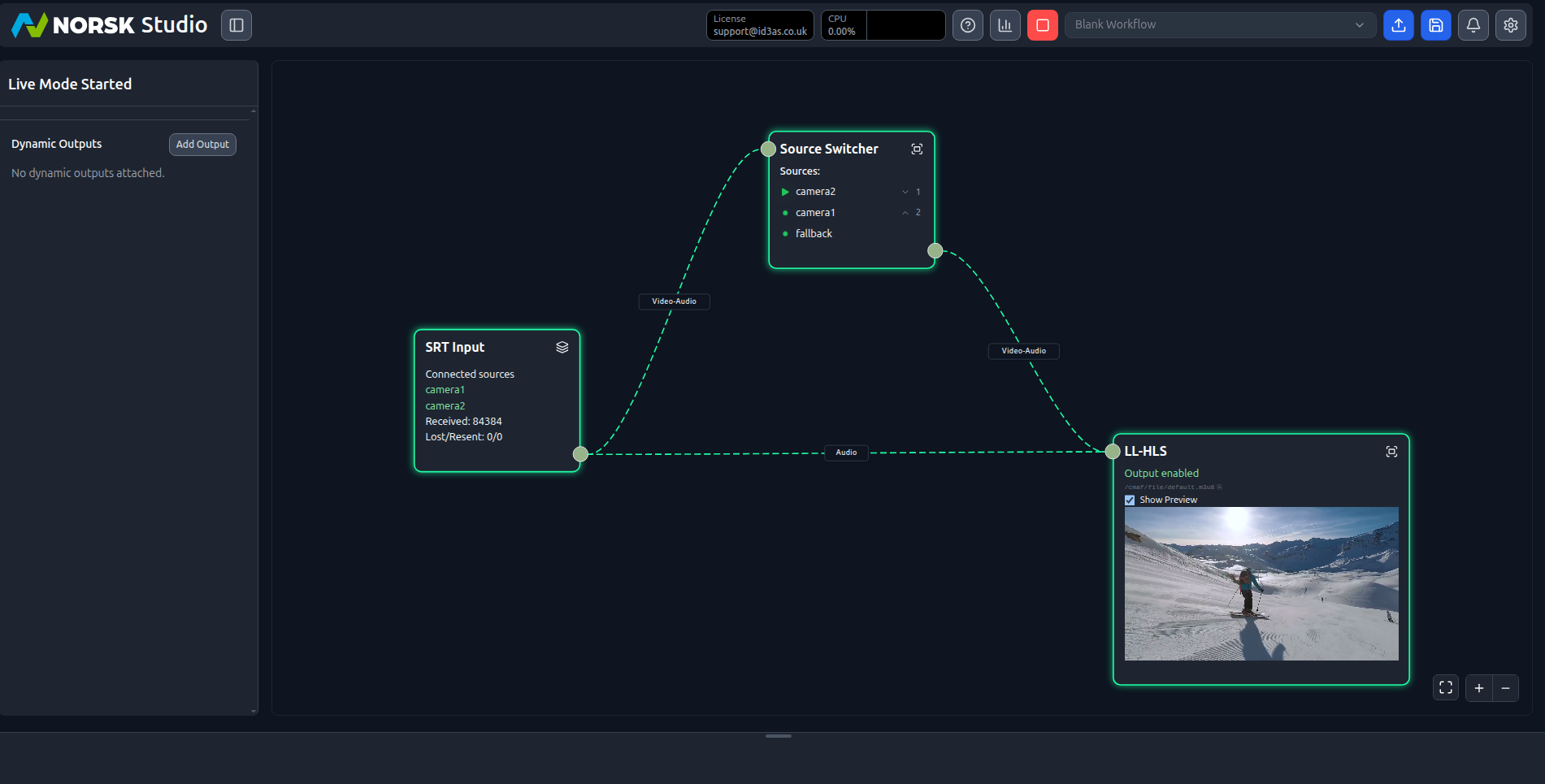
Hit play. If you don’t have two cameras handy, stream the sample sources into each stream ID:
./sample-srt-source.sh camera1 start
./sample-srt-source.sh camera2 start
Both cameras now show as connected sources, and the Source Switcher lists them with the active one playing:
Open the Source Switcher’s control view to produce. Each source appears with a live thumbnail and its online status, and the current program source is badged ACTIVE. Click Make Active on a source to cut to it — the Output Preview and the delivered stream follow instantly. The Priority Order list sets the fallback chain: if the active camera drops, the switcher moves down the list rather than cutting to black.
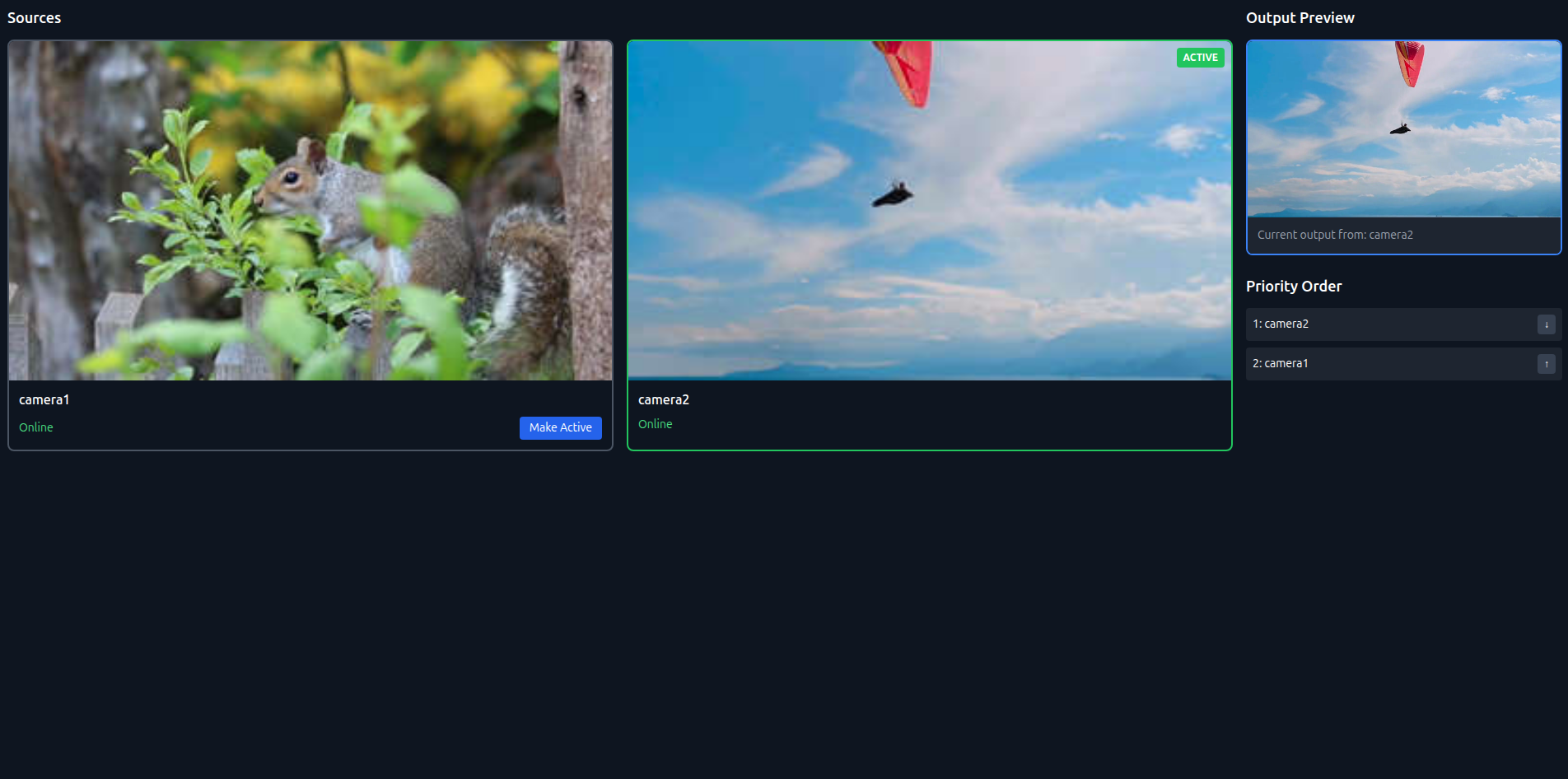
Because it’s a smart switch, it holds on the current source and only cuts when the target is genuinely healthy, using a short quality warm-up — so you never cut to a frozen or black frame.